Last Table,
right on your phone.
Our native app for iPhone and Android is on its way to the App Store and Google Play. Until then, install the web app: it takes ten seconds, opens full screen from your home screen and always runs the latest version.
Ready to install
One tap adds Last Table to your home screen.
On iPhone: Share → Add to Home Screen
Tap in Safari, then Add to Home Screen. Step-by-step guide below.
In Chrome: menu → Install app
Step-by-step guide below.
Open this page on your phone
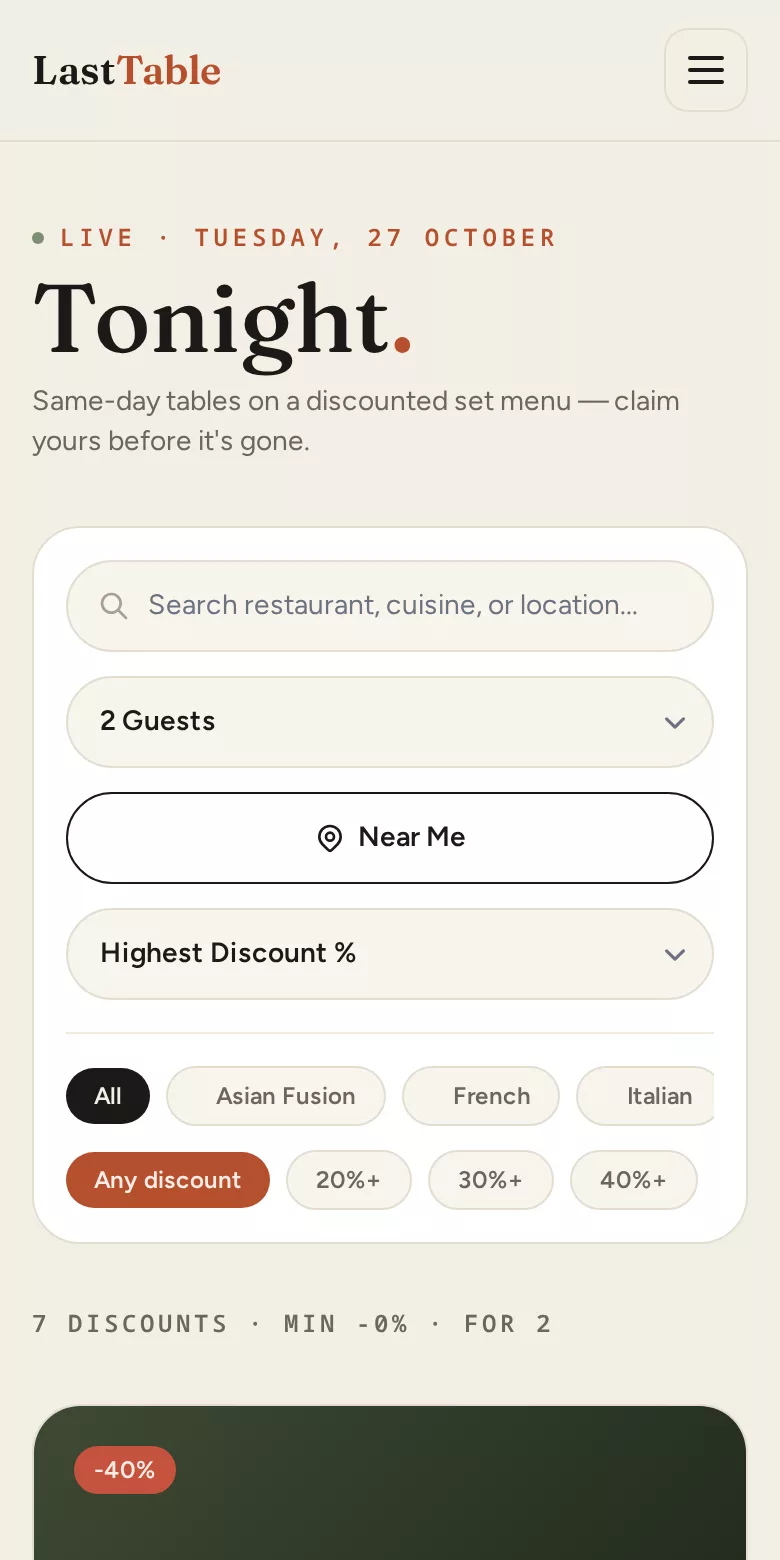
Go to lasttable.noahbohme.com/app-demo on your iPhone or Android phone and follow the guide below.
How to install
-
1
Open this page in Safari
Open lasttable.noahbohme.com/app-demo in Safari. On iOS 16.4 and later Chrome and Edge work too, from the same Share button.
-
2
Tap Share
Tap the Share button at the bottom of the screen (at the top on iPad).
-
3
Add to Home Screen
Scroll down the list and tap Add to Home Screen. If you don't see it, tap Edit Actions and add it.
-
4
Tap Add
Keep the name “Last Table”. On iOS 26, leave Open as Web App switched on, then tap Add.
-
5
Open it from your Home Screen
Tap the new Last Table icon and log in once. It opens full screen, like any other app.
-
1
Open this page in Chrome
Open lasttable.noahbohme.com/app-demo in Chrome. Samsung Internet, Edge and Firefox also work.
-
2
Tap Install
Tap the Install app button on this page. No button? Tap the menu in the top right instead.
-
3
Choose Install app
In the menu, choose Install app (on some phones it's called Add to Home screen, then Install).
-
4
Confirm
Tap Install in the pop-up. Last Table appears on your home screen and in your app drawer.
-
5
Open it like any app
Tap the icon and log in once. It runs full screen without the browser bar.
Everything works in the web app
- ✓ Browse tonight's discounted tables near you
- ✓ Book a table and pay securely
- ✓ See, cancel and review your bookings
- ✓ Message the restaurant about a booking
- ✓ Restaurants: manage menus, discount days and bookings
Coming with the native app
- → Push notifications for bookings and messages
- → Download from the App Store and Google Play
When it's out, install it and remove the web app — your account and bookings carry over.
Questions
Is it safe?+
Yes. The web app is the Last Table website itself, served over HTTPS. Payments go through Stripe, exactly as on the website.
Do I have to update it?+
No. It always loads the latest version, so there's nothing to update.
Does it take up space?+
Barely: it's an icon and a few small files.
How do I remove it?+
Press and hold the icon, then choose Remove App (iPhone) or Uninstall (Android).
I don't see “Add to Home Screen” on my iPhone.+
Make sure you're in Safari, not inside another app such as Instagram or Messenger. Open the menu and choose “Open in Safari” first.